

1. Create an animation
Open Lottie Libre and choose New animation. With nothing selected, set Seconds to 2 in the Animation panel on the right. Finish editing the field and click the canvas before using a tool shortcut.2. Draw the shape
PressR for a rectangle or O for an ellipse, then drag on the canvas. Keep the shape near the left side, with room to move to the right.
Press V to select it.
3. Record the movement
The playhead marks the time you are editing. A keyframe records a property’s value at that time.- Move the timeline playhead to 0 seconds.
- With the shape selected, click the diamond beside Position in the Properties panel on the right. This records the starting position.
- Move the playhead to 1 second.
- Drag the shape to the right, keeping it inside the canvas. Position is already animated, so Libre records a second keyframe automatically.
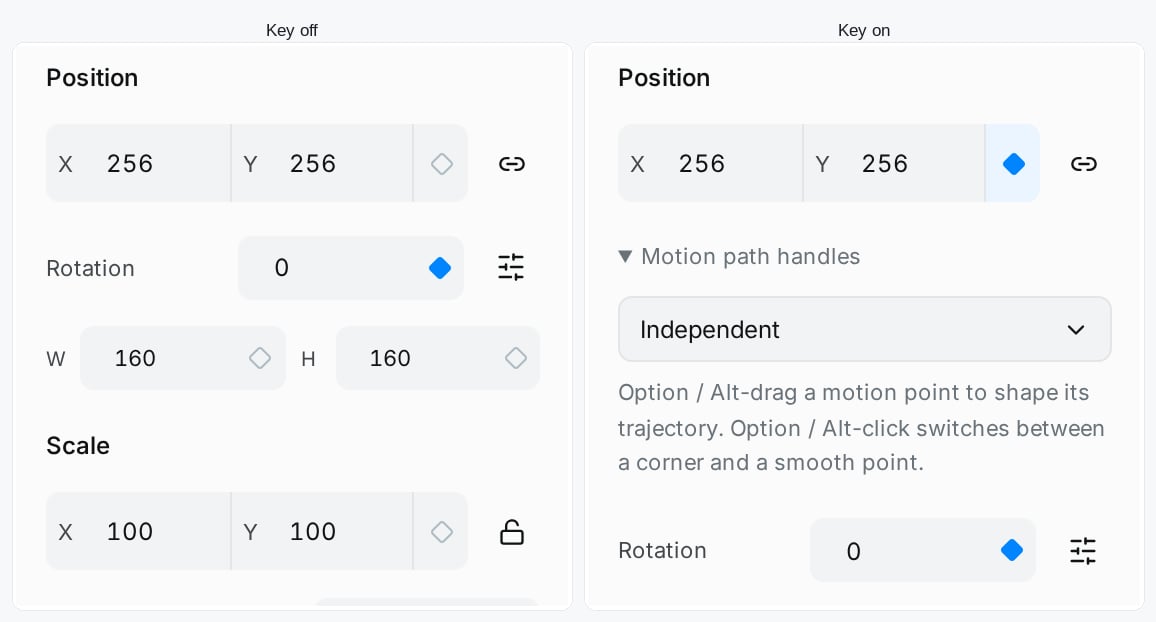
The filled diamond confirms a keyframe at the current time.
4. Preview the result
PressSpace to play or pause. The shape should travel to its second position during the first second, then stay there until the animation ends.
Drag the playhead back and forth to inspect the movement. If the shape stays still throughout, check that Position has keys at two different times with different values.
5. Keep an editable copy
Your guest draft is stored in this browser on this device. Wait for local-save confirmation. To keep a backup outside the browser, open Document actions beside the animation’s name and choose Download source. The file ends in.libre.json.
For access from another device, save the draft to your account. For a save error, see Autosave and restore.
6. Download a Lottie animation
Choose Export, play a Lottie preview, and compare it with the editor reference. Choose Download Lottie JSON to save a.json animation for playback.
Keep the .libre.json source for future edits; use the Lottie .json in a player.
Continue with your animation
- Adjust timing and make a loop: change the pace or return the shape to its starting position.
- Animate another property: add a fade or edit existing keys.
- Choose an export format: use dotLottie, video, or Telegram TGS.
- Share a snapshot: let someone inspect and export a saved version.