

Add and edit text
- Choose Text (
T) and click the canvas. - Select the text layer and edit Text in Properties.
- Choose Font family, then adjust size, line height, letter spacing, and alignment.
Load a font
Choose a font in Font family, or use Load a font… to open a.ttf, .otf, or .woff file. Online fonts need a connection when first loaded.
Imported text can display its saved characters without a loaded font. To type new characters, load the matching font. If a character is missing from that font, try another font.
If the font catalog or a font fails to load, check your connection and try again, or use Load a font…. If a local font is rejected, try another font file.
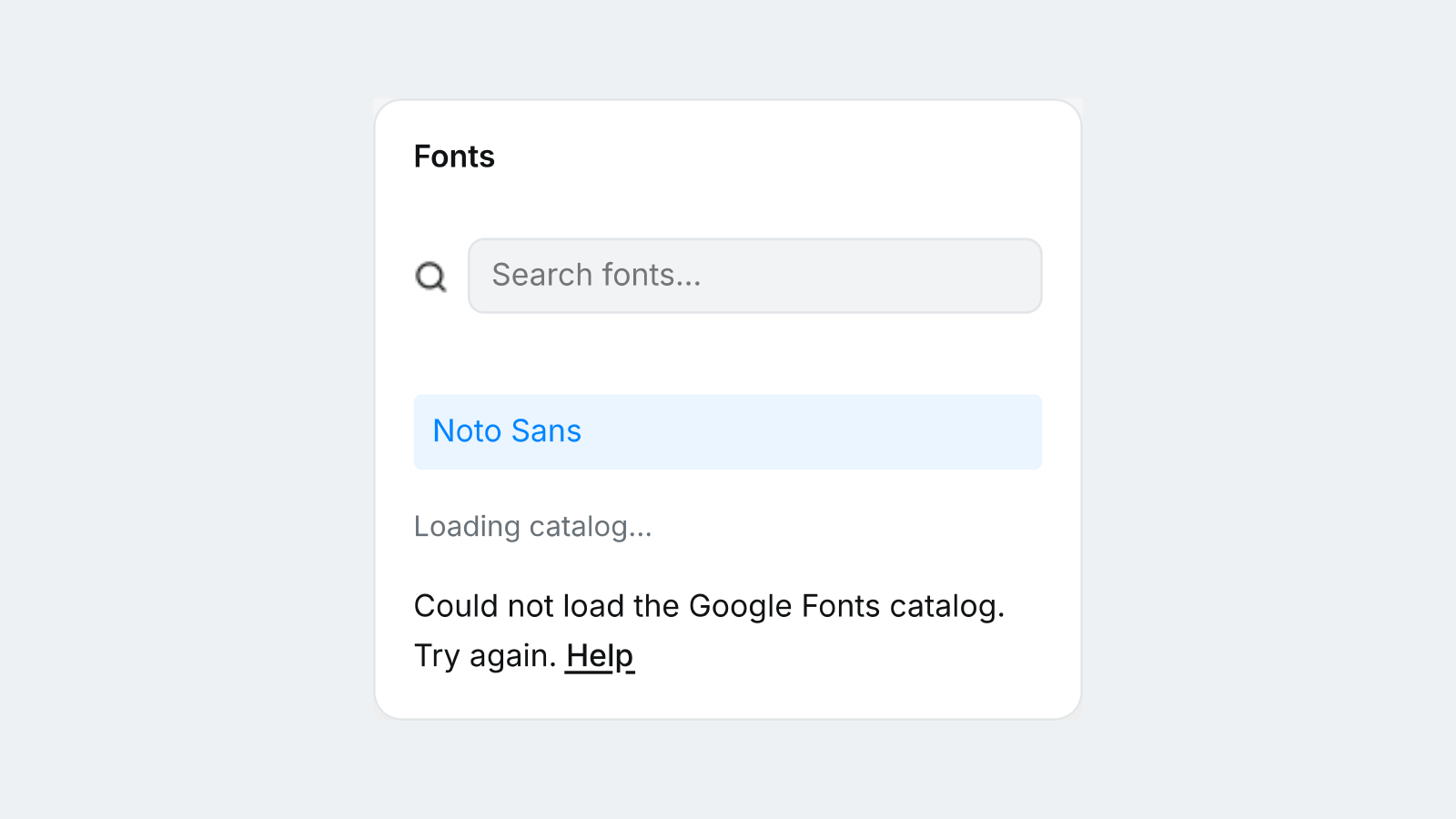
Example: the font catalog cannot load.